> ## Documentation Index
> Fetch the complete documentation index at: https://docs.zazubot.com/llms.txt
> Use this file to discover all available pages before exploring further.
# Results
Once your bot is [published](/editor/publish) you start to collect results from your users. You can see all the results in the `Results` tab of your bot.
You might be surprised to see partially filled results. This is normal and
expected. Your zazubot collects the answers as soon as they are filled by the
user, even if the user doesn't complete the whole conversation. This is useful
to understand where users are dropping off and to improve your bot. This is
one of zazubot's greatest features.
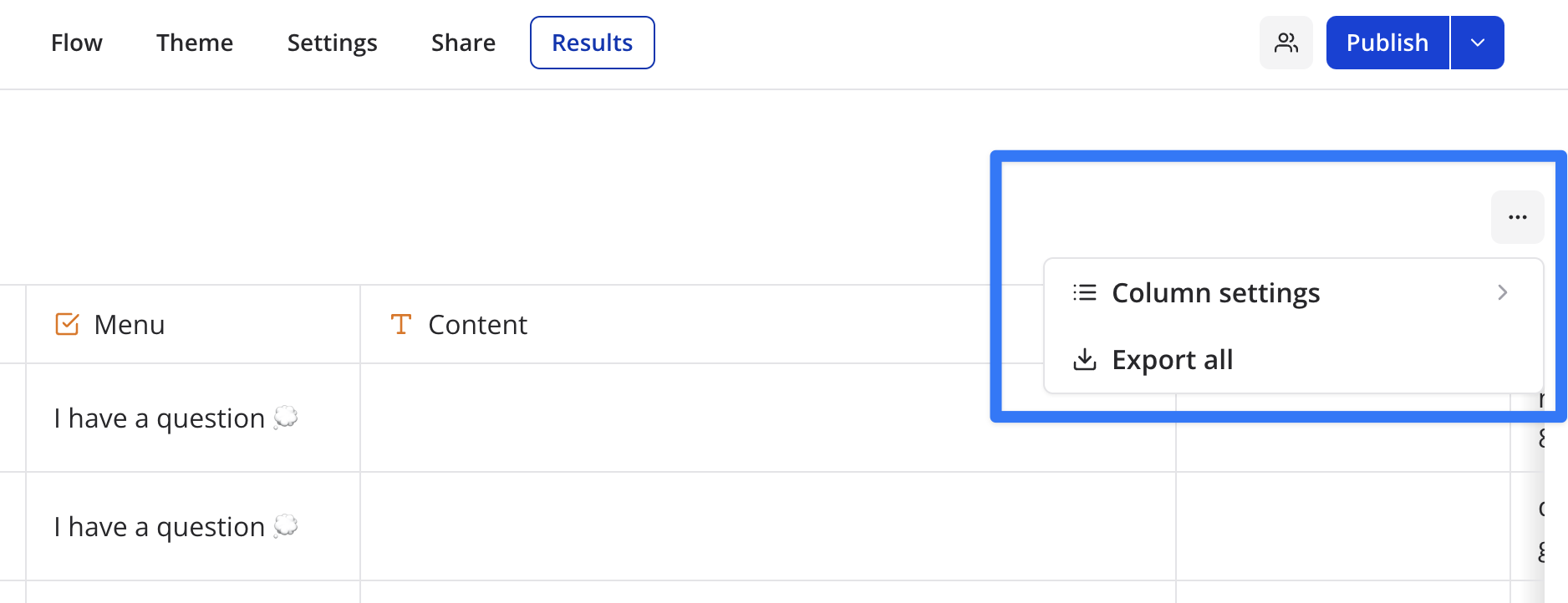
## More options menu
 ## Time filter
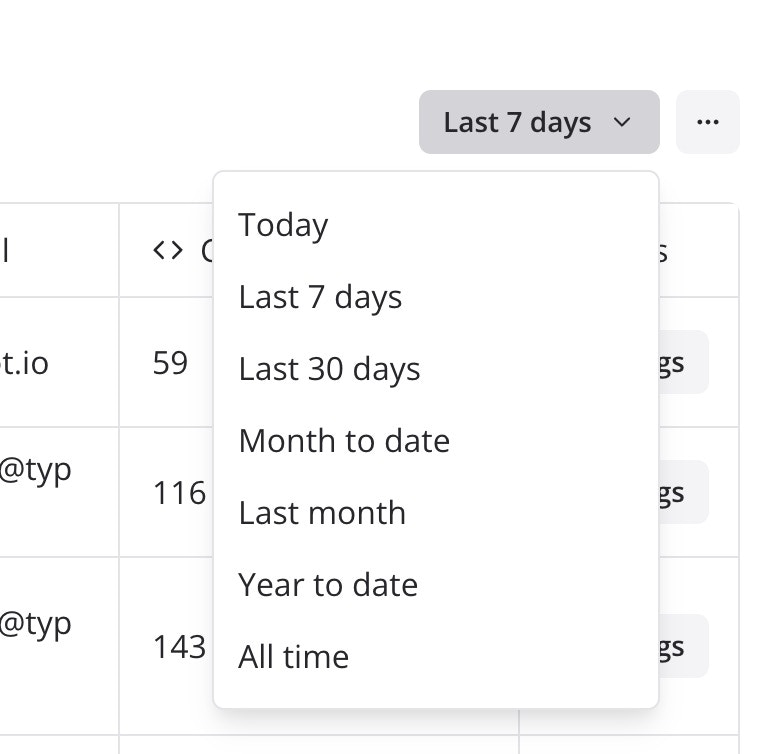
By default, results from the last 7 days are displayed. You can change this by clicking on the date filter button:
## Time filter
By default, results from the last 7 days are displayed. You can change this by clicking on the date filter button:
 ### Export all results to a CSV file
You can export all results to a CSV file. This will download a CSV file with all the results from the current bot.
The `Include deleted blocks` option, if enabled, will include answers from blocks that doesn't exist any more (was part of a previous version of your bot).
### Re-arrange and hide specific columns
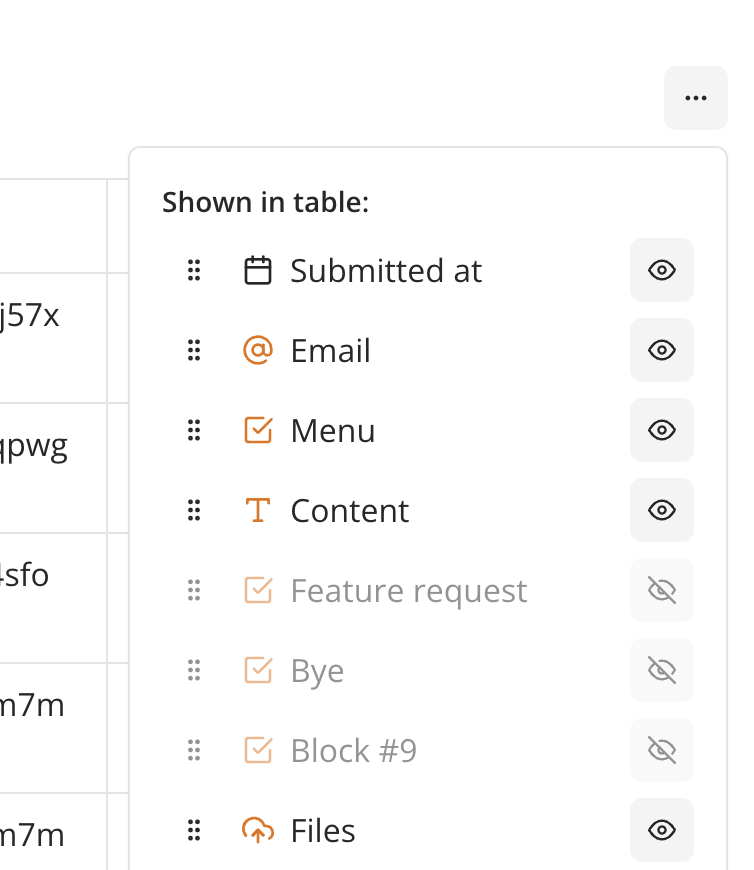
To make your result table more readable, you can re-arrange and hide specific columns.
### Export all results to a CSV file
You can export all results to a CSV file. This will download a CSV file with all the results from the current bot.
The `Include deleted blocks` option, if enabled, will include answers from blocks that doesn't exist any more (was part of a previous version of your bot).
### Re-arrange and hide specific columns
To make your result table more readable, you can re-arrange and hide specific columns.
 ## Logs
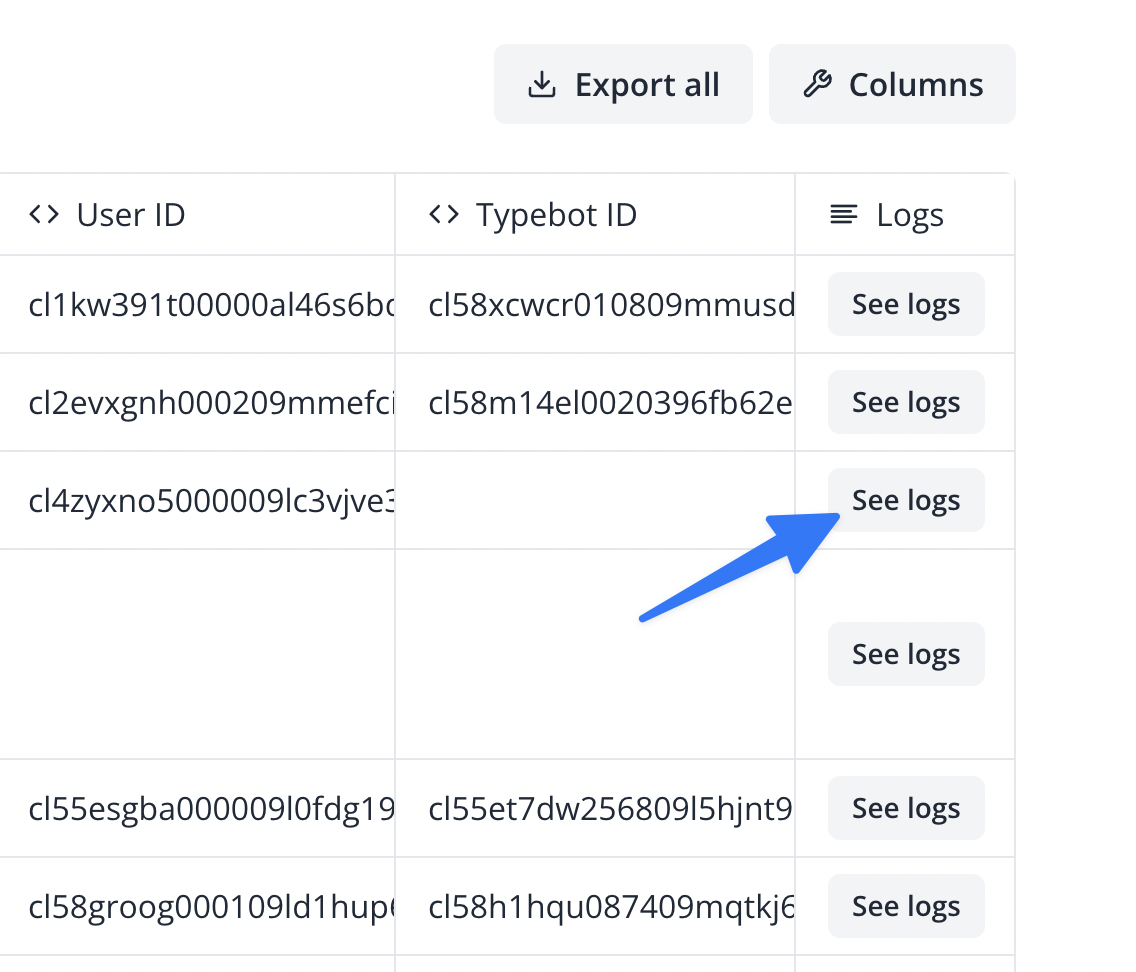
For each result, you'll find a "See logs" button that can show you what went wrong while executing an integration such as Send email, Google Sheets, or a Webhook call:
## Logs
For each result, you'll find a "See logs" button that can show you what went wrong while executing an integration such as Send email, Google Sheets, or a Webhook call: